Creating Slide Presentations
The slide generator supports presentation generation from idea, to creating and refining your narrative, to outline generation and editing, slide-by-slide topic specification, theme and layout selections, and editing and adding new slides after slide generation.

Unlike general AI platforms you do not generate presentations on MACg just by writing a prompt to generate a slide presentation.
MACg has a specific presentation generation workflow designed to support narrative generation and refinement, outline generation steps, selction of themes and layouts in the slide builder, and a slide editor for refinement and creation of new slides after the initial output. This approach gives users better
control over the quality of the the final presentation while still using AI agents for the heavy lift.
The slide generation workflow starts with selecting New Slide Presentation from the dashboard or select Create New Slide at the end of any chat response.
New Slide Presentation creation workflow from the Dashboard
1 - Select New Slide Presentation
2 - Select your evidence source in the chat window
A. Upload
B. Select form your refernce collection
C. Web
D. PubMed
3 - Instruct MACg by typing into the chat window (Do not enter number of slides, theme or layout, these will be selected later) then select the blue button to execute.
A. Enter topic or title
B. Focus
C. Target Audience
D. Anything to exclude
E. Language
C. MACg will generate a summary of the presentation which you can modify with further instructions.
When ready you can tell MACg “Yes” to proceed to the next step to open the slide builder.
D. Within the slide builder you can further modify the title, and the summary and do the following:
A. Select the theme
B. Select the number of slides
C. Generate slide by slide outlines
A. You can edit each slide card (topic, focus) (Note MACg uses the layout selected to generate
the content. Do not enter instructions about slide layouts like bullets or images, or graphs
etc, this could cause an error).
B. Select slide layout or let MACg select
C. Add new slide cards, rearrange, or delete slide cards
D. Generate slides by selecting “Generate”
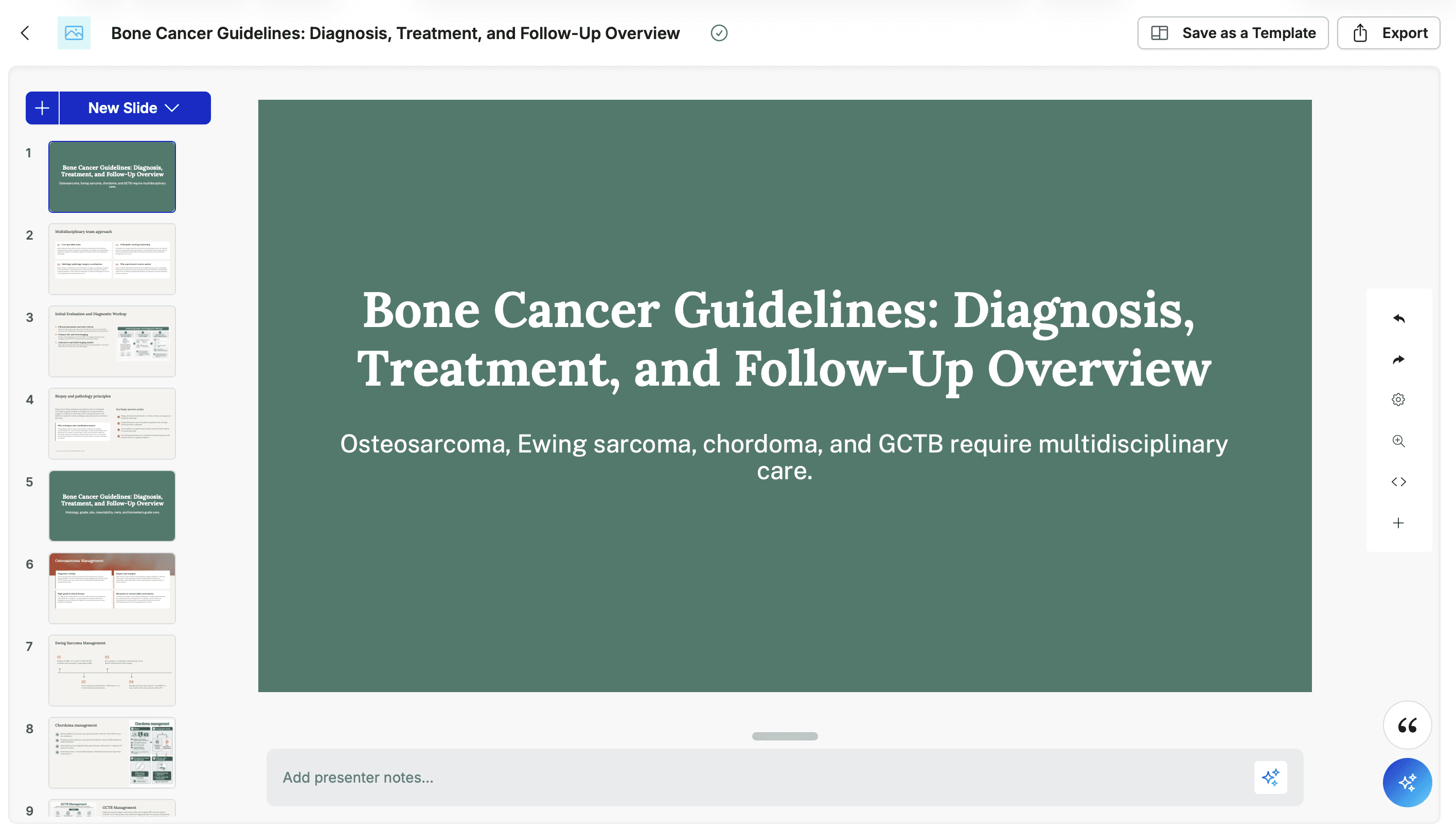
*If the slides take longer than 3 minutes they will be saved in your work library