Using the MACg Citation Manager
The citation manager is built for scientific and medical writing. It helps users collect references, organize sources, generate citations, and support document drafting in one workflow. The tool supports common citation styles, including AMA, APA, and MLA. It also connects citation work with broader writing tasks, so users can move from literature review to drafting without switching between disconnected platforms. MACg is designed for healthcare and life sciences teams that need faster, more structured source handling. Its citation functions sit alongside reference management, PubMed-supported research, and AI-assisted writing features, making it useful for building evidence-based scientific and medical content. In practice, MACg serves as both a citation tool and a writing support system. It streamlines reference organization, citation creation, and source-supported content development for users working on scientific, clinical, and medical communication projects.

Using the MACg Citation Manager
Overview
The citation manager is a proprietary feature that allows MACg users to cite automatically and manage citations within the text editor. It supports:
- In-text citations
- Cite-as-you write
- Manual addition and editing of citations
- Generation of reference lists
- Rearrangement of reference lists as you reposition text
When you upload documents, or MACg uses PubMed or the web, it automatically extracts the citation from the source and saves it in the citation generator for use when it writes content using that source. This means that MACg uses the actual citation from the source, not hallucinated citations.
The citation tool supports AMA, APA, and MLA citation formats. AMA is the default format used for MACg-generated outputs, but users can switch between formats using the citation tool.
The citation generator reduces the need for citation tools like EndNote and streamlines the content creation process.
Accessing the Citation Manager
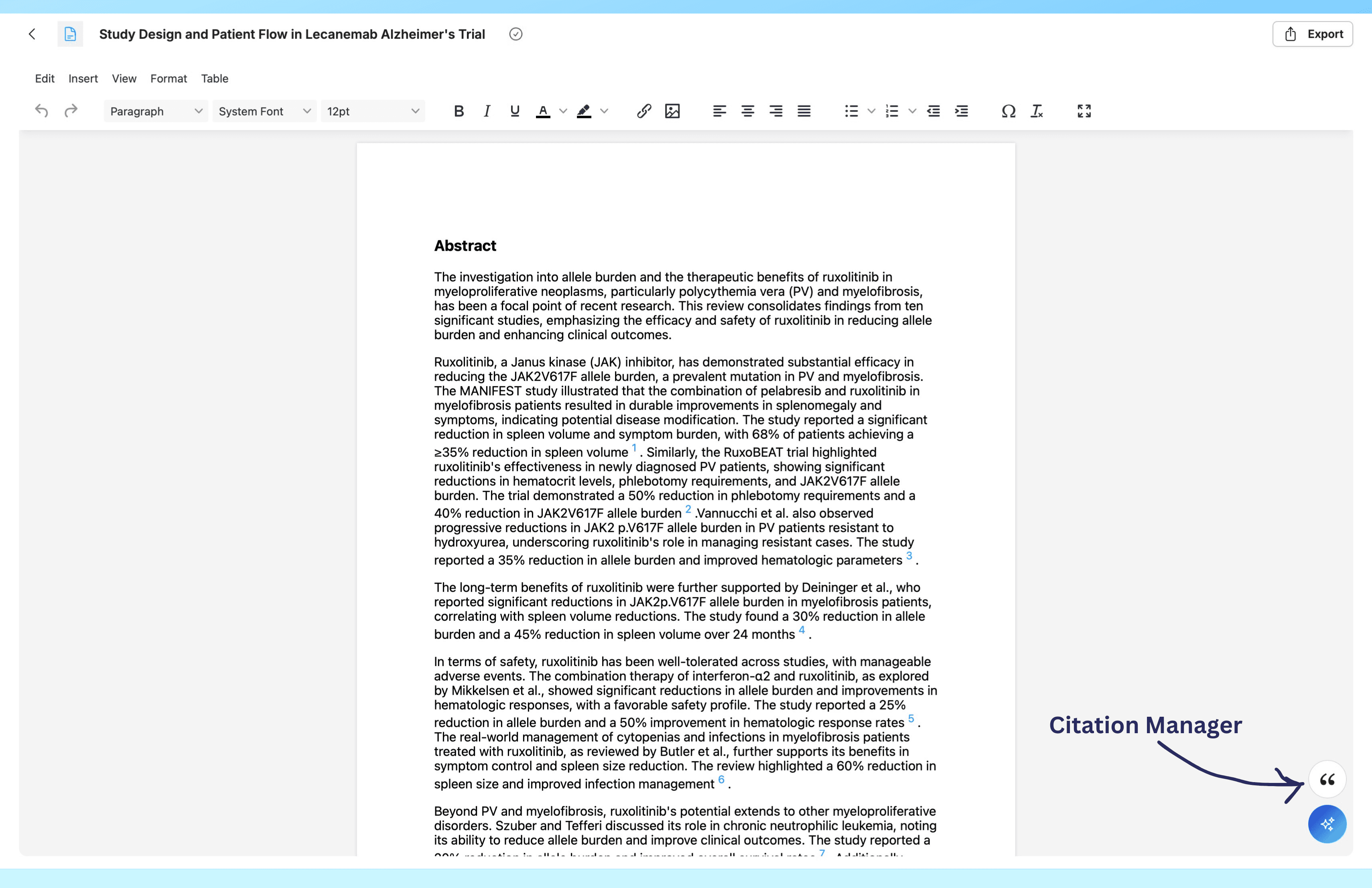
Access the citation generator from the text editor or within the slide builder by selecting the citation manager icon.
Features of the Citation Manager
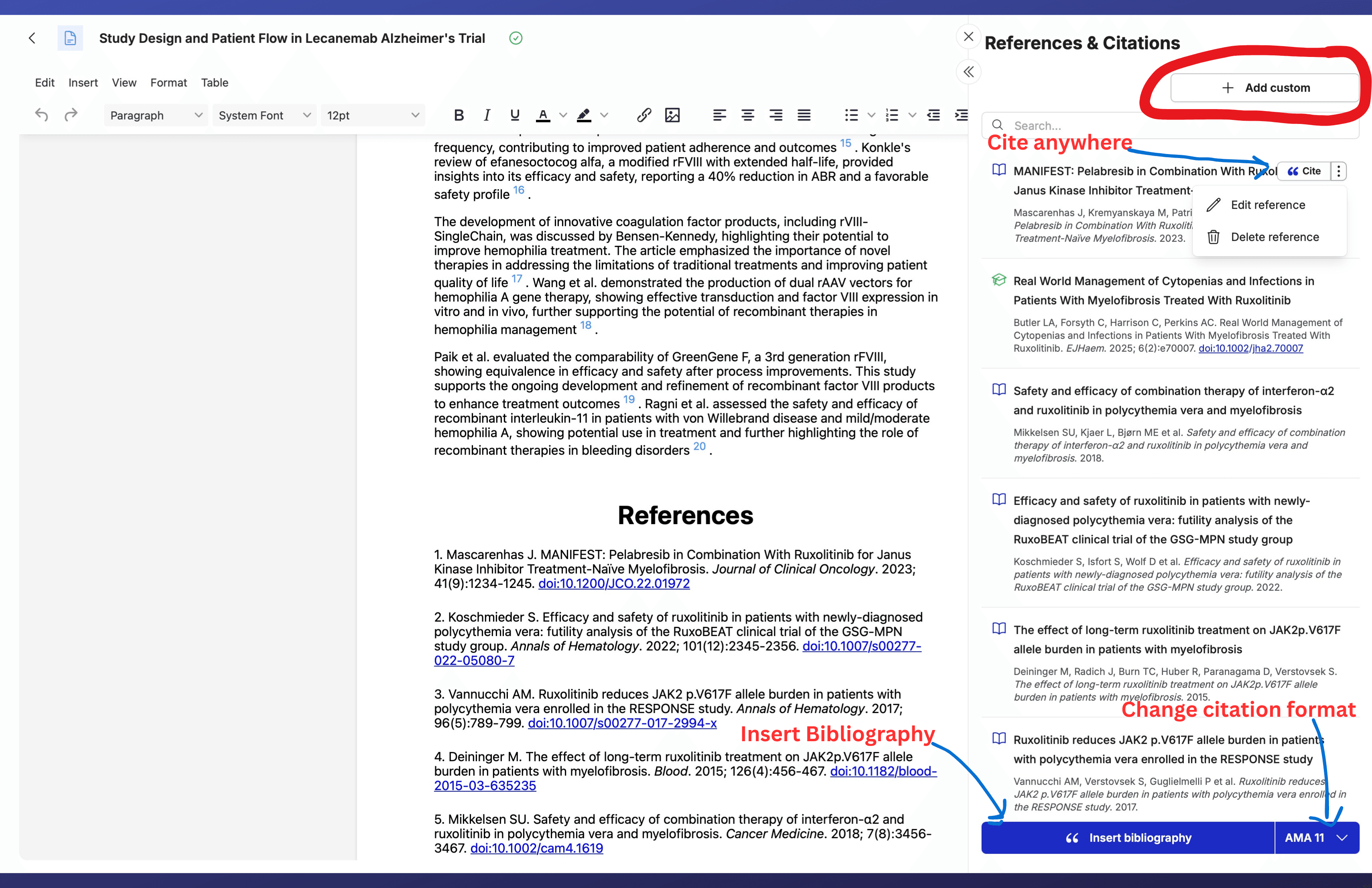
Opening the citation manager shows a list of references in order of use in the document. Hovering over a reference in the citation tool shows the option to:
- Cite button: Cite a section of the document in the text editor
- Clicking the 3 dots next to the “Cite” button reveals the options for:
- Edit a reference (Select to edit)
- Delete reference (Select to delete)
- Add a custom citation (Select, then manually enter the citation fields)
- Bibliography (Insert a bibliography/refertence list into your text document with one click)
- AMA, MLA, APA drop-down (Select to switch between citation formats)
How to add a citation to any section of your document
a. In the text editor, place your cursor where you want the citation by clicking next to the word.
b. Open the citation manager, hover over the reference, then click the "cite" button. The in-text citation will be placed where your cursor is located.
How to move citations
Citation numbers can be moved within the document by:
Copy and Paste
- Click the citation number
- Select “Edit” from the text editor menu options, then copy or use your keyboard shortcuts for copy.
- Place your cursor next to where you want the citation and paste.
Drag and Drop
Click the citation number and drag it to the new area.
How to create a bibliogrphy/reference list
1. Open the citation manager
2. Click on Insert Bibliography
A reference list will be added to the end of your content in the chosen format. Any citations that were repositioned will be moved to the correct position on the list.