How to Use AI to Update PowerPoint Presentations (Step-by-Step Guide for Faster, Better Slides)
Updating an existing PowerPoint deck no longer has to mean hours of manual rewriting and reformatting. This article shows a practical, step‑by‑step workflow for using AI (e.g., MACg) to generate new, evidence‑based slides and seamlessly integrate them into your current presentation. Instead of asking AI to “fix” an entire deck, you'll learn how to target specific sections, brief the AI with the right sources, generate PowerPoint‑ready slides, and then merge and restyle them so they match your original look and feel. The result is faster updates, higher consistency, and full human control over scientific quality.
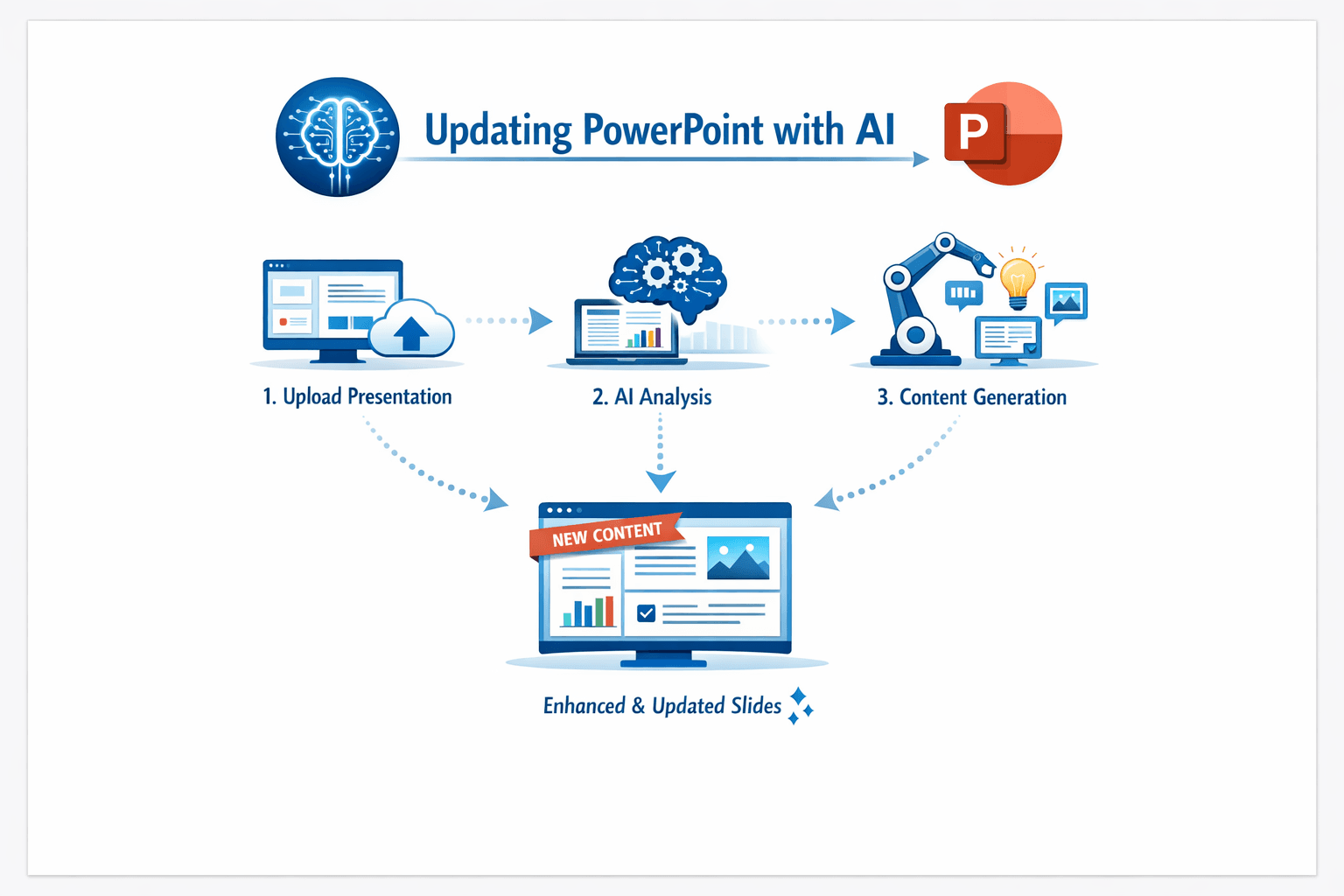
Updating an existing PowerPoint slide deck used to mean hours of manual rewriting, reformatting, and chasing down new references. With AI slide presentation generators like MACg, you can generate new, evidence‑based slides as a PowerPoint file, then merge and restyle them so they look like they've always been part of your original presentation.
Many people assume they can simply attach a deck, write a single prompt, and have the AI automatically “fix” or fully update the entire presentation. In practice, this usually leads to frustration, because most platforms are not yet able to reliably restructure and restyle an entire deck end‑to‑end.
A more effective strategy is to use AI to create only the new or updated slides you need, then integrate those slides into your existing presentation with minimal manual work. This article shows a practical, repeatable workflow using MACg's slide generation tool. The example is an existing scientific presentation (a multiple sclerosis [MS] therapeutics deck) that needs an anti‑CD20 mechanism of action section, but the same approach works for many other topics and domains.
Watch: Update Any Powerpoint With AI
Why Use AI Slide Generation Instead of Manual Copy‑Paste?
AI slide generation is more than a text‑writing shortcut. Used well, it can improve the quality, speed, and consistency of your updates.
1. It Preserves Topic Consistency
When you supply a specific knowledge source—such as a mechanistic article on anti‑CD20 therapies—MACg can follow that source across the new slides it generates. That means key concepts (for example, epitope binding, B‑cell subsets, effector mechanisms) are described in a way that stays internally consistent and aligned with your source material and existing deck.
2. It Saves Time
Instead of manually drafting titles, bullets, and layouts, you define a task such as:
“Create four slides on the mechanism of action of anti‑CD20 monoclonal antibodies in multiple sclerosis.”
MACg then returns a self‑contained slide file you can open directly in PowerPoint—no copy‑paste required.
3. It Understands Context
When you upload your existing MS presentation alongside the article, MACg can “see” how anti‑CD20 therapies fit within the broader treatment landscape. It generates new slides at a similar scientific level, tone, and narrative depth, so they don't feel disconnected from the rest of your deck.
A Practical Strategy for Updating Slide Decks With AI
Instead of asking AI to fully rebuild your deck (unless you want an entirely new deck), use it to generate new slides or sections and then integrate them into your existing presentation.
At a high level, the workflow is:
-Identify the section you want to update (for example, mechanism of action).
-Upload your current slide deck and the primary article or knowledge source for the new content.
-Use MACg's slide generation tool to create only the new slides you need.
-Export, merge, and lightly adjust those slides in PowerPoint.
-Remove or replace any outdated slides in your original deck.
This approach is concrete, repeatable, and keeps manual effort focused on review and styling, not on starting from a blank slide.
Preparing Your Inputs: What to Upload and How to Brief the AI
To get high‑quality, usable slides, you need two core inputs and a clear prompt.
1. Upload Your Existing Slide Deck
Your existing deck gives MACg:
-The overall structure and flow.
-Typical slide types and layouts.
-The level of scientific detail used for your audience.
2. Upload the Key Article or Knowledge Source
The primary article (for example, a detailed review on drugs targeting CD20 in MS) provides:
-The mechanistic foundation (B‑cell biology, CD20 structure).
-Epitope differences between antibodies.
-Effector functions and their clinical implications.
For non‑scientific presentations, this might be:
-A white paper.
-An internal strategy document.
-A detailed blog post or report.
3. Write a Clear, Focused Brief
When you start the slide generation process, your instruction should be explicit about scope, purpose, and audience.
For example: “Use the attached CD20 article and my MS deck as context. Create four slides that focus on the mechanism of action of anti‑CD20 monoclonal antibodies in multiple sclerosis, suitable for neurologists.”
This brief tells the AI:
-Which document(s) control the story.
-How many slides to create.
-Who the target audience of the slide presentation.
How the MACg Slide Generation Tool Builds the New Slides
MACg has a slide creation workflow where you can:
-Choose a theme.
-Set the number of slides.
-Adjust your outline.
-Choose layouts for each slide.
Unlike tools that only output text, MACg is a complete slide editor. It creates a PowerPoint‑compatible file with real slides, titles, text boxes, and layouts. Not all AI platforms can do this; many only produce text that you must paste into PowerPoint yourself. Your strategy should adapt to the capabilities of the platform you're using.
Example: Anti‑CD20 Mechanism Section
Using the anti‑CD20 article, MACg can automatically propose a logical mini‑narrative, such as:
- An opening slide explaining why B cells and CD20 are important targets in MS, including B‑cell roles and the CD20 expression window.
- A slide on CD20 structure and epitopes, describing the two extracellular loops and how different anti‑CD20 monoclonal antibodies recognize distinct regions.
- A slide on effector mechanisms (complement‑dependent cytotoxicity, antibody‑dependent cellular cytotoxicity, phagocytosis, apoptosis) and how their relative importance varies between agents.
- A final slide linking these mechanisms to clinical implications such as efficacy, depth and compartment of B‑cell depletion, infection risk, and vaccine response.
Because MACg also has your original MS deck, it can match terminology and depth of detail—for example, using the same language for relapse reduction, MRI lesion control, or disability progression that appears elsewhere.
The result is a small, focused PowerPoint file containing the new mechanism slides—not just a text block you still have to convert into slides.
Editing and Exporting AI‑Generated Slides From MACg
Once the slide generation run is complete, you can refine the slides inside the MACg slide editor before exporting them.
Within the editor, you can:
- Change or shorten text.
- Rearrange content elements.
- Add or adjust images and charts.
- Insert additional slides if needed.
- Modify fonts and colors within the AI‑generated module.
When you are satisfied, export the slides as a PPT file. MACg will send this file to your email for you to download.
If you're using another AI platform, the export path may differ.
Some platforms:
- Only export as PDF.
- Do not offer a slide editor.
- Require you to paste content into PowerPoint manually.
Adjust your workflow accordingly.
Merging MACg‑Generated Slides Into Your Existing PowerPoint Deck
After export, you now have:
- Your original deck.
- A new AI‑generated module with updated slides.
To combine them:
- Open both files in PowerPoint.
- In your main deck, go to the slide thumbnail pane.
- Decide where the new section should appear.
- Copy the MACg‑generated slides from the AI file.
- Paste them into your main deck at the desired position.
Once pasted, the new slides behave like any other slides in the deck. You can reorder them, duplicate them, or hide them as needed.
Making the New Slides Match Your Theme, Fonts, and Colors
To ensure the new slides look like part of the original presentation, apply your existing Slide Master and styles.
Apply the Correct Layout:
- In your main deck, right‑click each imported slide.
- Select Layout and choose the same layout used by nearby slides.
This step automatically aligns:
- Backgrounds and header bars.
- Logos and branding elements.
- Text placeholders.
Harmonize Text and Spacing:
Use Format Painter to copy font, size, color, and bullet spacing from an existing slide to each new slide.
Adjust list levels so headings, bullets, and sub‑bullets match your standard hierarchy.
You may need to nudge some elements or shorten text slightly, but this should be a quick pass, not a ground‑up redesign.
Saving Versions and Exporting Final Deliverables
Once the new slides are merged and styled, save a new version of the deck so you can track which file includes the AI updates.
You can also:
Export a stand‑alone mini‑deck that includes only the AI‑generated section plus a title slide.
Export a PDF version for quick review or distribution where an editable file isn't needed.
Best Practices for Using AI Slide Generation (Clinicians and Medical Writers)
A few habits make this workflow more robust and compliant.
1. Anchor AI to a Clear Source
Always tell MACg (or any AI tool) which article, document, or knowledge source should control each update. This makes the resulting slides easier to defend scientifically and simpler to review.
2. Work in Small, Defined Units
Start with a narrow task such as “Create four mechanism‑of‑action slides.” Once that works well, repeat the process for other sections.
3. Maintain Traceability
MACg saves your chat history, and the generated decks are stored in your Work Library and linked to the chat. In addition, maintain a simple tracking file outside MACg that records:
- Which slides were updated with AI.
- Which sources were used.
- When the updates were made.
- This is particularly useful for internal medical, legal, and regulatory review.
4. Always Perform Human Scientific Review
Treat AI‑generated slides as a strong draft—not a final regulatory or promotional document. Before external use, have qualified reviewers check the entire presentation.
A Repeatable, Human‑Centered AI Workflow for Updating Slide Presentations
Using MACg's slide generation tool, you can move from a manual, slide‑by‑slide editing process to a structured, efficient workflow:
- Upload your existing deck and key article(s).
- Instruct MACg to generate a focused set of new slides as an actual PowerPoint file.
- Edit, export, and merge those slides into your original deck.
- Restyle them to match your theme and branding.
- Save and track updated versions for review and reuse.
This approach combines the speed and structure of AI with the judgment and oversight of human experts, giving you clearer, more coherent slide updates with far less effort than traditional methods. You may need to adapt specific steps based on the features of the AI platform you are using, but the core workflow—generate new slides with AI, then integrate and polish in PowerPoint—is widely applicable.
Download Presentation: How To Use AI Slide Generation to Refresh a PowerPoint Deck
From Evidence to Publication-Ready Content—Faster
MACg brings research, writing, citations, visuals, and presentations together in one Evidence-First AI workspace.
AINGENS Launches A Generous Affiliate Program for MACg, The Cutting-Edge AI Platform for Life Sciences Content Creation
AINGENS, a leader in AI-driven research and medical writing innovation, announces an affiliate program for its flagship product, MACg. The program offers an attractive 30% recurring commission. The press release highlights MACg's advanced features, including AI multimodal writing assistance powered by GPT-4.0 and o3-mini, real-time integration with PubMed, automated citation support, and robust visualization tools. Additionally, MACg boasts an enterprise-grade security framework that ensures data privacy and GDPR compliance. This comprehensive announcement also emphasizes AINGENS' focus on empowering teams with fit-for-purpose AI solutions that streamline and enhance life sciences workflows, enabling users to achieve unprecedented productivity in scientific content creation. This initiative underscores AINGENS' dedication to innovation in scientific research and content creation.

Jun 26, 2025

AINGENS Launches MACg AI Scientific Slide Generator, Unifying Search, Writing, Citations, and Presentations for Scientific Communication
AINGENS has launched the MACg AI Scientific Slide Generator, a new capability inside its MACg platform that lets life sciences teams turn PubMed search results and scientific documents into citation‑correct slide decks in minutes. Built specifically for medical affairs, clinical research, HEOR, medical information, and scientific communications, the tool differs from generic AI slide makers like Copilot, ChatGPT, and Gamma by integrating PubMed search, Reference Collections, and an AMA/APA/MLA citation engine into the slide workflow. Users can design their deck structure upfront, then generate slides with titles, bullets, charts, tables, images, and infographics, all fully editable. The slide generator keeps slide‑level citations and reference slides synchronized as content moves, ensuring accuracy and traceability. Integrated visual tools support scientific charts and diagrams, while templates and PowerPoint/PDF export make it easy to reuse and share decks. With MACg, professionals can search, write, cite, edit, and present on a single, evidence‑first platform.
Dec 26, 2025

A Real-World Review of MACg for Editing, Writing, and PubMed Search
Dr. Goldina Erowele examines the transformative role of MACg, an AI platform designed for life sciences professionals. Her initial experience involved using MACg to review a draft document and integrate PubMed references, showcasing its ability to streamline research and ensure content accuracy. MACg's tools expedite the draft review process, improving tone and readability while maintaining compliance with medical standards. The platform's applications extend to creating scientific abstracts, clinical trial reports, and training materials, promising to enhance productivity and impact in medical communications.

Jan 27, 2025