How to Create and Use Prompt Templates to Create PowerPoint Style Medical or Scientific AI Slides and Graphics
This article explains how prompt templates can help create clearer, more polished medical and scientific AI slide graphics. Instead of relying on vague requests, templates provide a reusable structure that makes AI-generated visuals feel more like professional PowerPoint slides and less like generic artwork. The article outlines the key parts of an effective template, including the topic, slide type, visual style, color palette, and layout instructions. It also shows how different formats, such as study design, patient journey, and key takeaways slides, can be matched to different communication goals. Readers will learn why strong prompts should be specific about layout, minimal in text, and designed with presentation use in mind. The included prompt examples are intended as practical starting points that can be customized for different studies, disease areas, products, or scientific messages. Overall, the article offers a simple framework for building more consistent, slide-ready visuals for medical and scientific presentations.
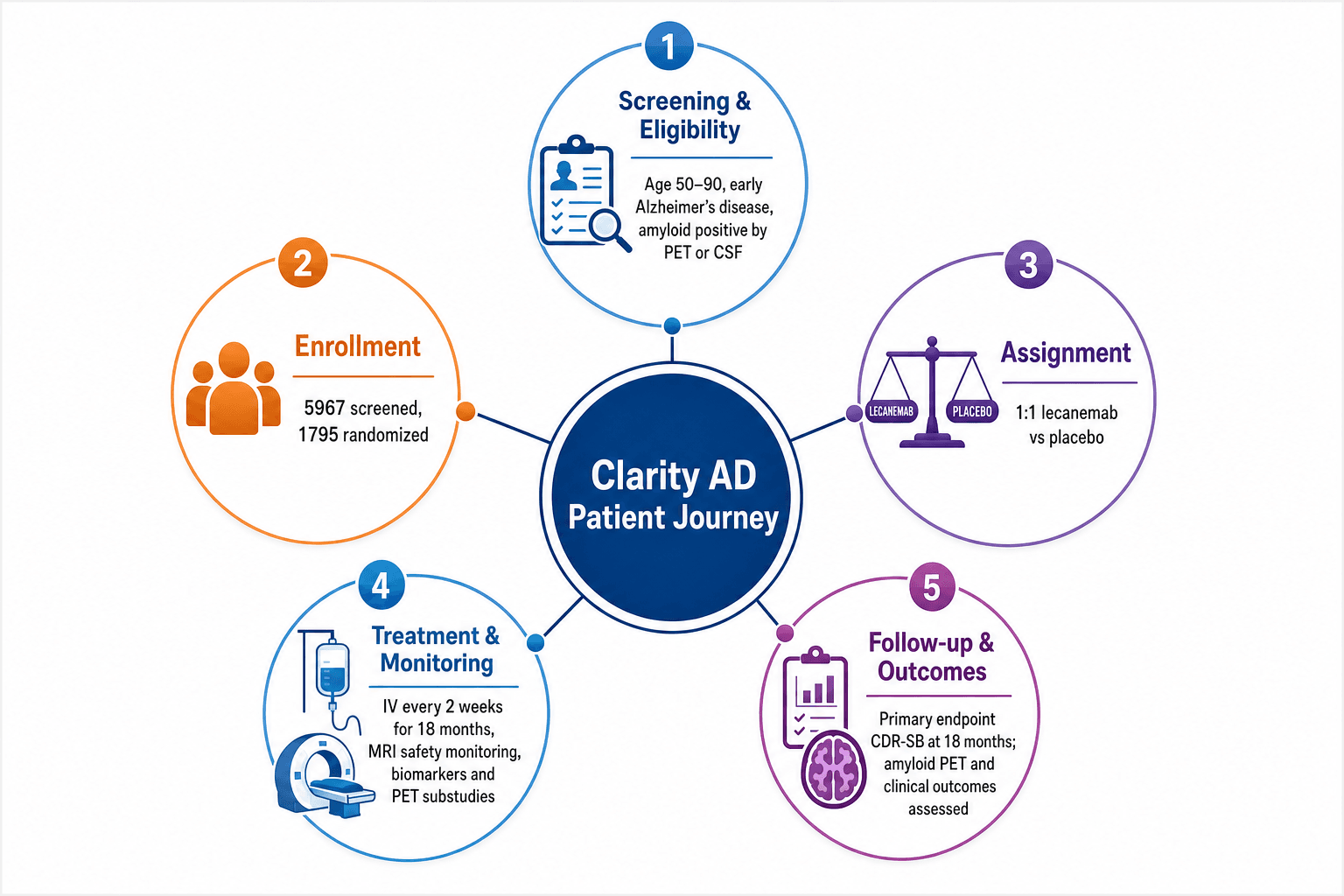
How to Use Medical Scientific Slide Prompt Templates to Create Better AI Presentation Graphics
Medical and scientific teams often need slides that are clear, credible, and presentation-ready without spending hours building every visual from scratch in PowerPoint.
AI prompt templates are a repeatable structure for generating polished, consistent, and customizable slide graphics when using AI slide presentation platforms like MACg.
What is a medical scientific slide prompt template?
A medical scientific slide prompt template is a ready-made prompt pattern you can reuse to generate a specific kind of slide visual, such as:
- a study design infographic
- a patient journey slide
- a mechanism of action visual
- an efficacy or safety summary slide
- a timeline, algorithm, or key takeaways slide
Instead of writing a prompt every time, you begin with a format that already includes the right style instructions, layout logic, and presentation-friendly design cues.
Why prompt templates are useful
Prompt templates help you:
- save time
- keep a consistent visual style across slides
- reduce vague prompting
- create graphics that better match PowerPoint layouts
- make medical and scientific information easier to understand visually
They are especially helpful when you want outputs that look more like conference slides, medical affairs decks, internal strategy presentations, or scientific summary visuals rather than generic illustrations.
The basic anatomy of a strong slide prompt
Most good prompt templates include five parts:
Topic: Define what the slide is about. Example: metastatic urothelial carcinoma, trial design, biomarker testing workflow
Slide type: Define the visual structure. Example: 5-step flow, circular process, comparison slide, timeline, summary boxes
Style: Define the visual tone. Example: professional PowerPoint-style, clean vector infographic, minimal and polished
Color palette: Define the look and brand feel. Example: blue-white, blue-orange, blue-gray, blue-purple
Composition rules: Make it slide-friendly. Example: centered layout, wide margins, full frame, no cropping, readable labels, minimal text
A simple formula you can reuse
Most slide prompts use this structure:
[Slide type] for [topic], [visual style], [layout details], [color palette], [icon instructions], [readability instructions], [composition instructions].
For example:
Study design infographic for a phase 3 oncology trial, scientific PowerPoint layout, flow showing screening, enrollment, randomization, intervention, and analysis, vector icons, blue-gray palette, minimal text, readable labels, centered composition, full frame, no cropping.
How to customize a slide template
The easiest way to use a template is to swap in your own content while keeping the design language intact.
1. Start with the right slide type
Pick a template that matches the message you want to communicate.
Use study design for methods and trial structure
Use patient journey for treatment pathways or care progression
Use key takeaways for executive summaries
Use mechanism of action for biological processes
Use baseline characteristics for population snapshots
Use timeline for milestones or development stages
2. Replace the topic
Insert your own study, disease area, product, or concept.
Examples:
“for the Clarity study”
“for EGFR-mutant NSCLC”
“for biomarker-driven patient selection”
“for hospital discharge workflow”
3. Adjust the palette and tone
Choose colors based on the context or your brand colors.
Blue-white for clean scientific slides
Blue-gray for a formal data-driven look
Blue-orange for stronger visual contrast
Blue-purple for biotech or biomarker topics
4. Control the amount of text
For image generation, shorter text usually works better than dense paragraphs. It helps to ask for:
short labels
minimal text
prominent insight boxes
readable section headers
5. Use a slide-friendly layout
This is one of the most important points. Good outputs often depend on explicitly asking for:
centered layout
wide margins
full frame
no cropping
balanced spacing
clean vector design
readable presentation style
These phrases help reduce cut-off text and awkward layouts.
Example: turning one idea into multiple slide types
Suppose your topic is a clinical study. You do not need to use the same prompt structure every time. You can adapt it into several slide styles depending on the goal.
Study design slide
Study design infographic for [STUDY NAME], scientific PowerPoint layout, flow showing screening, enrollment, randomization, intervention, and analysis, vector icons, blue-gray palette, minimal text, readable labels, centered composition, full frame, no cropping.
Patient journey slide
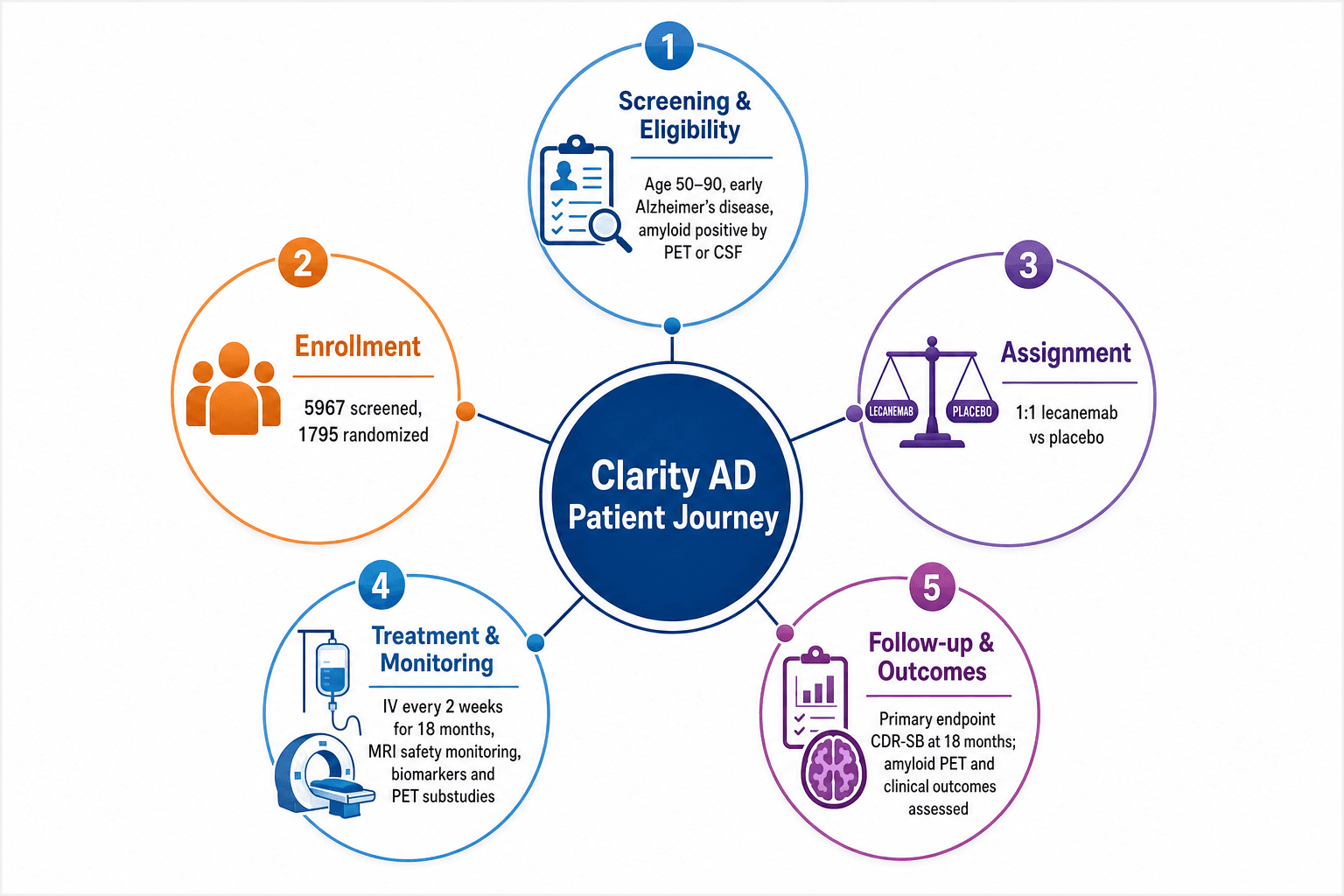
Patient journey infographic for [STUDY NAME], healthcare presentation aesthetic, 5-step horizontal flow from diagnosis through treatment and follow-up, medical icons, blue-orange palette, labeled sections, centered layout with margin padding, full frame, no cropping, clean and professional.
Key takeaways slide
Key takeaways slide for [STUDY NAME], scientific executive-summary PowerPoint graphic, 3 to 5 prominent insight boxes with icons and short labels, blue-white palette, clean vector design, centered composition with wide margins, full frame, no cropping, minimal and polished.
This lets you tell the same story in different visual formats across your deck.
Best practices for using prompt templates
Be specific about structure
Instead of saying “make an infographic,” say what kind:
5-step horizontal flow
circular workflow
3-column summary
hub-and-spoke diagram
side-by-side comparison
milestone timeline
Use wording that reflects a slide-style visual rather than a poster-style layout.
If you want slide-friendly results, ask for:
PowerPoint-style slide graphic
executive-summary layout
conference-style scientific slide
clean vector infographic
minimal and polished
This tends to produce visuals that feel more suitable for decks and presentations.
Keep labels concise
Long sentences inside generated graphics can become messy. Use prompt phrases like:
short labels
minimal text
clear headers
readable callouts
Match the visual to the audience
Different audiences need different slide styles.
Medical affairs: balanced, clinical, clean
Scientific congress: data-oriented, structured
Executive leadership: summary-first, insight-driven
Commercial strategy: high-level, visually strong, simple
Common mistakes to avoid
A few prompt issues often lead to weaker outputs:
asking for too much text inside the image
not specifying layout type
not mentioning full frame or no cropping
mixing too many styles in one prompt
using vague phrases like “make it better” without visual direction
If the output feels generic, the prompt usually needs a clearer structure rather than more words.
A plug-and-play prompt method
Here is a practical fill-in method you can use:
[Slide type] for [topic], [presentation style], [specific layout structure], [color palette], [icon type], [text density], centered layout with wide margins, full frame, no cropping, readable presentation style, clean vector design, minimal and polished.
Example:
Safety profile slide for adjuvant immunotherapy study, medical conference-style infographic, structured sections for adverse events, serious adverse events, discontinuations, and monitoring, blue-orange palette, medical icons, minimal text, centered layout with wide margins, full frame, no cropping, readable presentation style, clean vector design, minimal and polished.
When to use these templates beyond medicine
Even though these are medical scientific slide prompt templates, the same framework works for:
biotech strategy decks
health economics slides
investor or board presentations
training materials
operations workflows
market access summaries
educational content
You can also adapt the templates for non-medical fields by replacing medical icons and study language with business, technology, policy, or education content.
Here are 25 customizable slide Prompt templates to get you started.
Conclusion
Prompt templates are useful because they make slide creation a repeatable system. Instead of writing a new prompt each time you choose a slide type, insert your topic, keep the layout language strong, and generate a cleaner first draft faster.
Medical scientific slide templates can help professionals create visuals that are consistent, readable, and much closer to professionally designed PowerPoint slides in less time and with less effort.
From Evidence to Publication-Ready Content—Faster
MACg brings research, writing, citations, visuals, and presentations together in one Evidence-First AI workspace.
100 AI Slide Presentation Prompts for Busy Medical and Scientific Professionals
This article provides 100 ready‑to‑use AI prompts to help medical and scientific professionals create high‑quality slide presentations with MACg. The prompts are organized into practical categories, including clinical education, drug and mechanism‑of‑action decks, PubMed‑driven evidence reviews, specialty teaching, medical affairs and HEOR, training and curriculum, data‑visualization, and conference or grant presentations. Each prompt uses clear “Instruction:” wording and customizable placeholders (e.g., [condition], [audience], [timeframe]) so users can quickly adapt them to their specific topic and setting. By removing blank‑slide paralysis, the collection speeds up evidence‑based slide creation while supporting consistent, structured, and compliant communication.

Feb 4, 2026
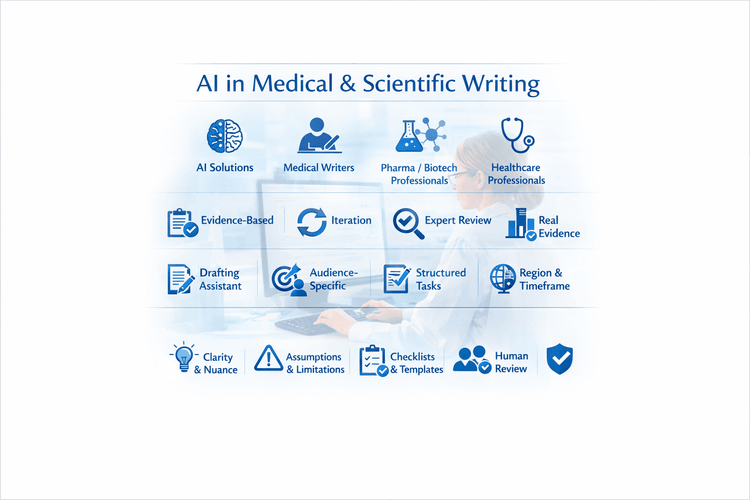
10 Tips For Using MACg and Other AI Solutions For Medical and Scientific Writing
This article shares 10 practical tips for medical writers, pharma/biotech professionals, HCPs, and researchers on how to use MACg and other AI solutions effectively and responsibly. It emphasizes that MACg's AI agent training knowledge is not a citable evidence base and must be anchored in real, verifiable sources such as publications, CSRs, labels, guidelines, and internal documents. Readers are encouraged to treat all AI outputs as Version 0.1, iterating with expert review rather than accepting the first draft. The article frames MACg as a drafting and thinking assistant, not an autonomous author, and stresses the importance of clear prompts about audience, purpose, region, timeframe, and scope. It recommends breaking complex projects into smaller tasks, using MACg to improve structure and clarity, and explicitly asking for limitations and caveats. Finally, it advocates creating institutional checklists and making expert human review and sign‑off mandatory for any impactful content.
Mar 1, 2026
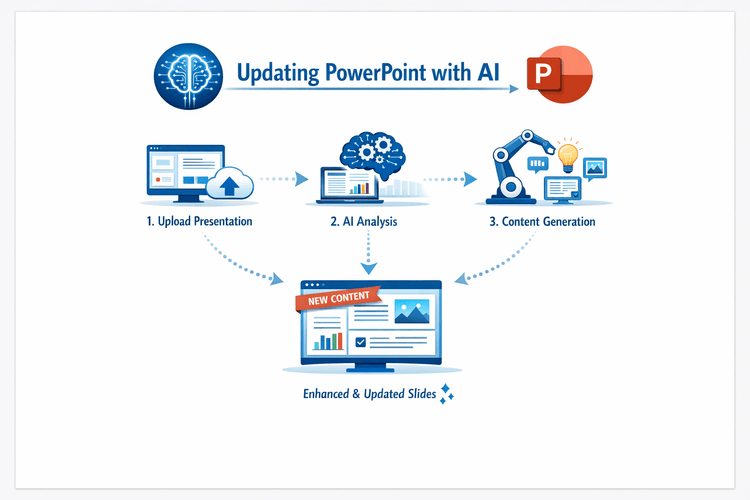
How to Use AI to Update PowerPoint Presentations (Step-by-Step Guide for Faster, Better Slides)
Updating an existing PowerPoint deck no longer has to mean hours of manual rewriting and reformatting. This article shows a practical, step‑by‑step workflow for using AI (e.g., MACg) to generate new, evidence‑based slides and seamlessly integrate them into your current presentation. Instead of asking AI to “fix” an entire deck, you'll learn how to target specific sections, brief the AI with the right sources, generate PowerPoint‑ready slides, and then merge and restyle them so they match your original look and feel. The result is faster updates, higher consistency, and full human control over scientific quality.
Jan 5, 2026