Using The MACg Slide Generator
This guide outlines the features of the MACg slide generator and the presentation creation workflow. It helps medical and scientific professionals create slide presentations and gives them control over the output while using trained AI agents and layouts for the heavy lifting.

Overview
The slide generator supports presentation generation from idea to creating and refining your narrative, to outline generation and editing, slide-by-slide topic specification, theme and layout selections, and editing and adding new slides after slide generation. MACg uses powerful AI agents that understand context and scientific data.
Citations are automatically added to the slide just like text documents.
Slide generation uses a combination of AI agents, chart and image generation tools, the citation generator, and the slide editor.
- Ask MACg, the main AI Writer
- Slide agent
- Image Agent
- Slide Editor
- Chart tool
- Citation generator
You can generate up to:
- 30 slides if you are on Free Trial, Pay-per-use, or Starter plans
- 70 slides if you have a Pro Plan
- 100 slides if you have Pro Plus or Team plans
Watch The Slide Presentation Tutorial
Creating Slide Presentations
Unlike general AI platforms, you do not generate presentations on MACg by writing a prompt to generate a slide presentation.
MACg has a specific presentation generation workflow designed to support narrative generation and refinement, outline generation steps, selection of themes and layouts in the slide builder, and a slide editor for refinement and creation of new slides after the initial output.
This approach gives users better control over the quality of the final presentation while still using AI agents for the heavy lift.
The slide generation workflow starts with selecting New Slide Presentation from the dashboard or selecting Create New Slide at the end of any chat response.
New Slide Presentation creation workflow from the Dashboard
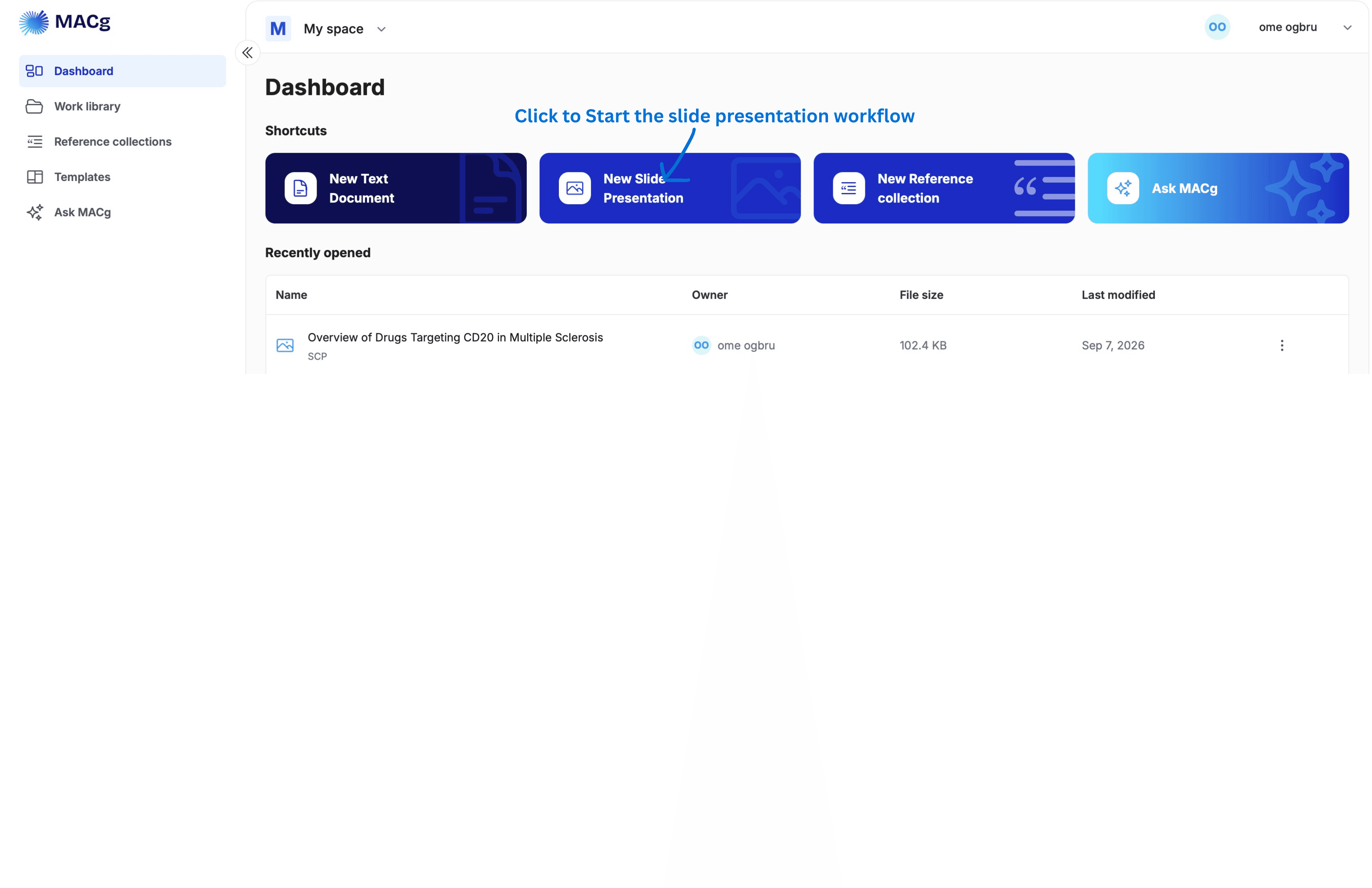
1 - Select New Slide Presentation
2 - Select your evidence source in the chat window
A. Upload
B. Select from your reference collection
C. Web
D. PubMed
3 - Instruct MACg by typing into the chat window (Do not enter the number of slides, theme or layout; these will be selected later), then select the blue button to execute.
A. Enter topic or title
B. Focus
C. Target Audience
D. Anything to exclude
E. Language
C. MACg will generate a summary of the presentation, which you can modify with further instructions.
When ready, tell MACg “Yes” to proceed to the next step and open the slide builder. Refresh your screen if the slide builder does not open within a few seconds.
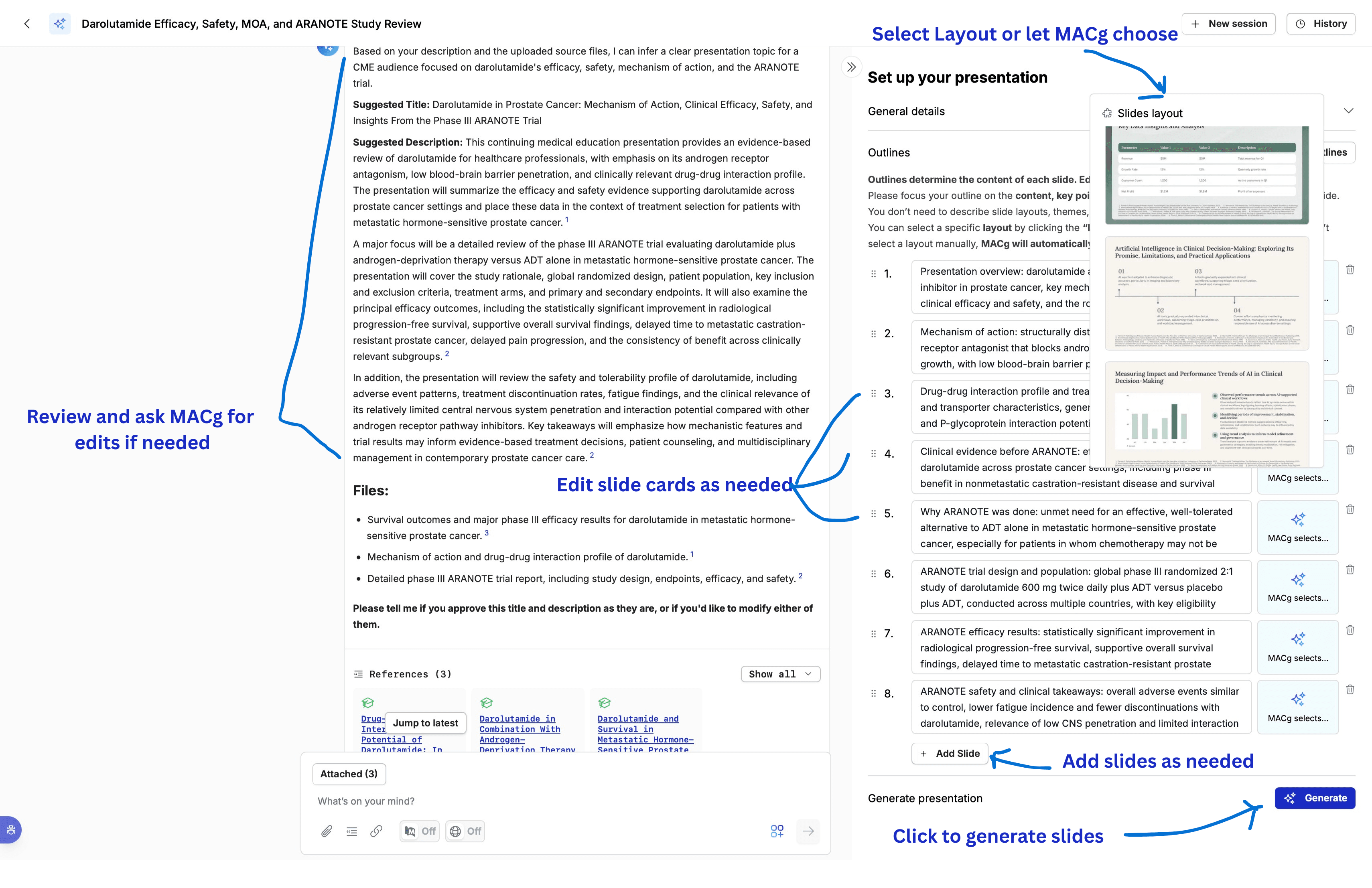
Within the slide builder, you can further modify the title and the summary and do the following:
A. Select the theme
B. Select the number of slides
C. Generate slide-by-slide outlines
You can edit each slide card (topic, focus) (Note: MACg uses the layout selected to generate
the content. Do not enter instructions about slide layouts like bullets or images; this could cause an error.)
A. Select slide layout or let MACg select
B. Add new slide cards, rearrange, or delete slide cards
C. Generate slides by selecting “Generate”
Editing slides in the slide editor
The slide editor opens when your presentation is complete or when you select the presentation from your work library.
Note: AI actions within the editor use the references you attached to the chat when creating the slides, so you do not have to go back and forth to your main chat. Your main chat and all your attachments are accessible by selecting the round blue button at the lower right corner of the screen.
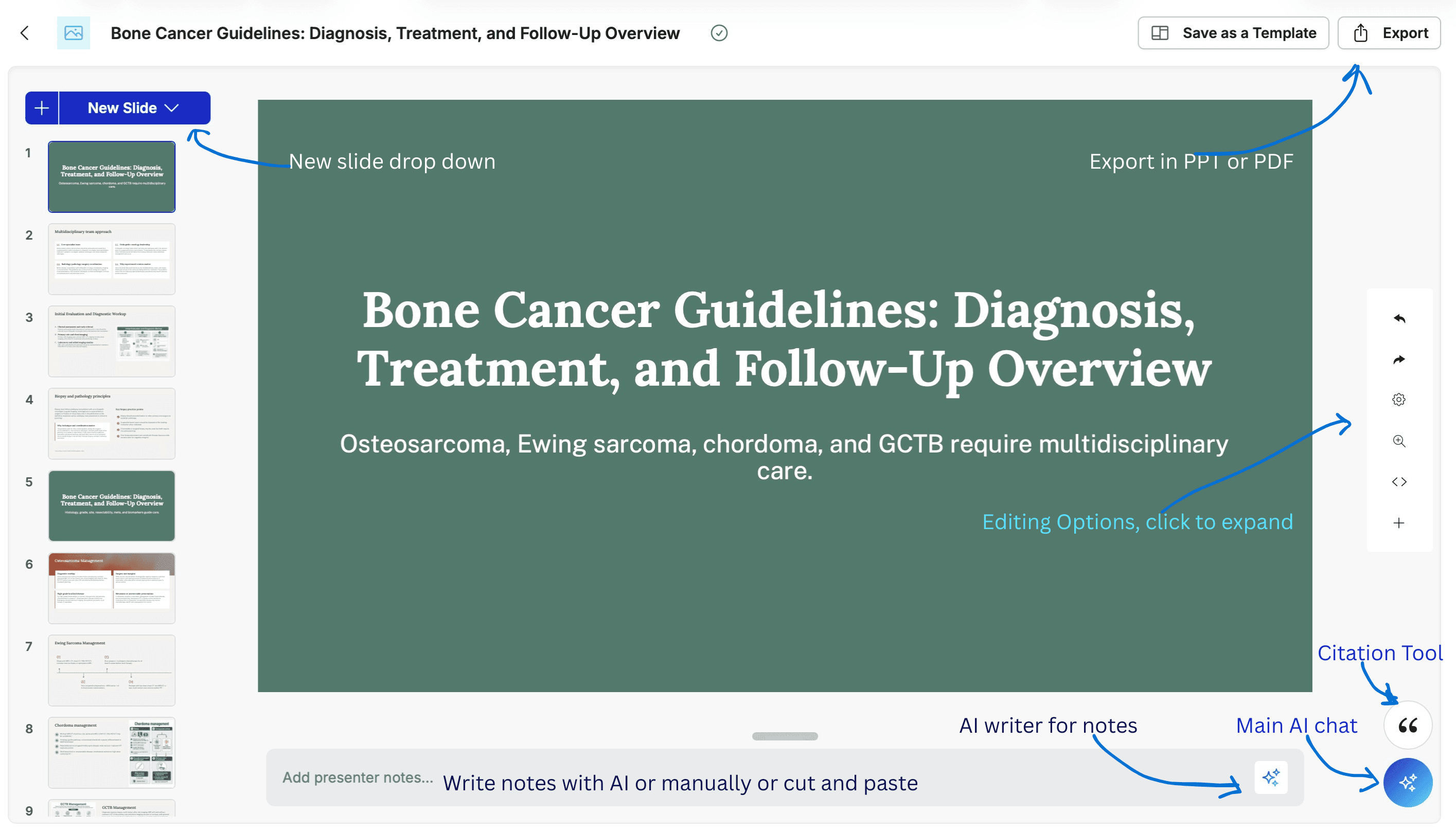
Use the slide editor to:
- Edit text
- Edit or generate new images or charts
- Rearrange slide content
- Create new slides
- Create slide notes
- Change slide color, fonts, etc.
- Import images (e.g., your company logo)
Editing text
Clicking on a text box allows you to move the text box or edit the text. Double-clicking reveals editing functions and shortcuts, including using the AI agent to rewrite content and quick actions.
Additional features on the right rail allow you to change font sizes, text size, and more.
Editing Images
A single click on an image lets you move the image.
Double-clicking on an image opens the edit, create new slide, and new chart with AI assistance features. Select either option, enter your instructions, and MACg will create a new image or chart or edit the current one as directed.
Creating new slides
Using AI assistance to create new slides
- Select New Slide drop-down (above the slide sorter, left rail)
- Select “Generate Slide with AI”
- Select a theme (Note: you can select any theme and use a layout from those themes)
- In the “Generate Slide” window, enter your instructions, select the layout you want to use or let MACg choose. (Tip: You can paste data; keep the instructions short and clear. You cannot instruct the model to use a certain color because it follows the color theme of the layout you selected. You can use the slide editing tools to make adjustments after the slide is generated)
- Click the “Blue Arrow” to execute.
Creating New slides manually
- Select "New Slide"
- Choose a theme
- Choose the slide layout
- Click the text field and manually enter text into the slide or use AI assistance (double-click the section, select the Ask MACg Symbol).
- Create a new image by double-clicking in the image placeholder, and use AI assistance by clicking the Ask MACg symbol.

Exporting your Presentation
- Select Export from the top right corner of the screen
- Select your export options (PDF, PPTX, Notes Only)
- Select Export
Note: Your presentation will be downloaded to your desktop and an email with a download link will also be sent.
New Slide Presentation creation workflow from any chat session
At the end of every chat ouput, there is the option to create a text document or a slide presentation.
Select "Create a new" a "Slide presentation" to start the presentation workflow. The rest of the steps are the same as when starting from the Dashboard.

100 AI Slide Presentation Prompts for Busy Medical and Scientific Professionals
This article provides 100 ready‑to‑use AI prompts to help medical and scientific professionals create high‑quality slide presentations with MACg. The prompts are organized into practical categories, including clinical education, drug and mechanism‑of‑action decks, PubMed‑driven evidence reviews, specialty teaching, medical affairs and HEOR, training and curriculum, data‑visualization, and conference or grant presentations. Each prompt uses clear “Instruction:” wording and customizable placeholders (e.g., [condition], [audience], [timeframe]) so users can quickly adapt them to their specific topic and setting. By removing blank‑slide paralysis, the collection speeds up evidence‑based slide creation while supporting consistent, structured, and compliant communication.

Feb 4, 2026
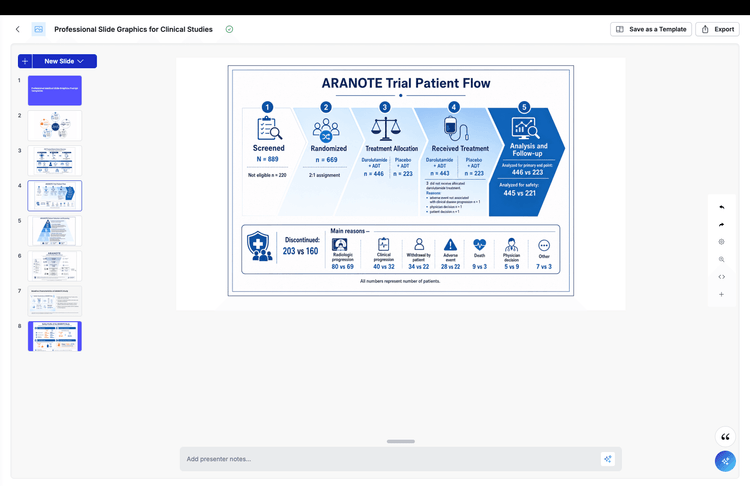
15 Pyramid, Funnel, and Chevron Prompt Templates for Amazing Scientific Slides
This article introduces 15 prompt templates for creating medical and scientific slides using pyramid, funnel, and chevron layouts. These templates are designed to help users build clear, professional PowerPoint-style visuals for common presentation needs such as hierarchies, patient populations, study flows, treatment pathways, and step-by-step processes. The article explains why template prompts are useful, especially for users who need to create additional slides after an initial AI-generated draft and want a more structured way to prompt. It also shows how to use the templates by selecting the right layout, customizing the topic, and adjusting style elements to create polished, slide-ready visuals for medical and scientific communication.
Jul 16, 2026
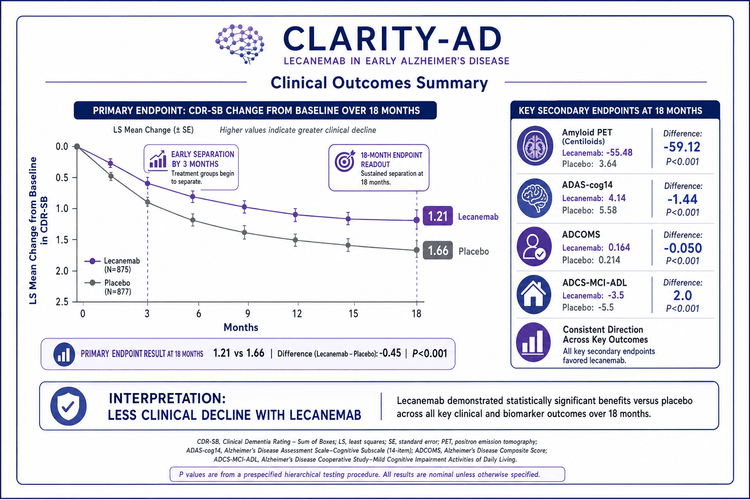
25 Medical and Scientific Slide AI Prompt Templates for Creating PowerPoint-Style Slides
These 25 medical and scientific AI slide prompts provide practical starting points for creating professional, PowerPoint-style visuals for scientific and healthcare presentations using AI slide platforms like MACg. They cover a range of common slide needs, including study design, patient journey, mechanism of action, efficacy, safety, timelines, biomarkers, and executive-summary takeaways. Each prompt is structured to help users generate graphics that are clean, readable, and visually consistent, with guidance on layout, style, color palette, and text density. These templates can be used as written or adapted to specific studies, disease areas, products, or communication goals, making it easier to build polished, slide-ready medical presentations with less time spent drafting prompts.
Jul 13, 2026
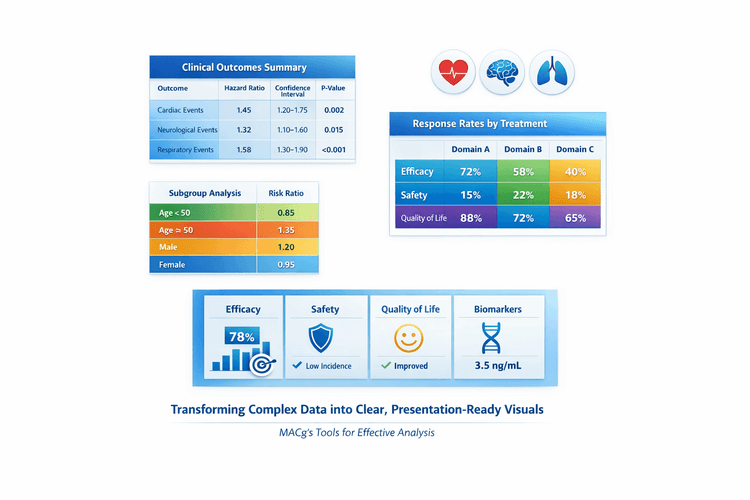
AI Slide-Ready Tables Made Easy: 10 Plug-and-Play Prompts for MACg Users
This article is a practical guide for MACg users who want to create beautiful, slide-ready tables from clinical and scientific data. It explains why the first slide output doesn't need to be perfect and shows how to iterate like a pro using MACg's image generator and flexible slide builder. The core of the article is a set of 10 copy‑pasteable prompt templates for different table styles, from primary outcomes and safety summaries to subgroup grids and multi-domain overviews. It also emphasizes attaching or pasting datasets so MACg can generate accurate, presentation-ready visuals.
Mar 27, 2026
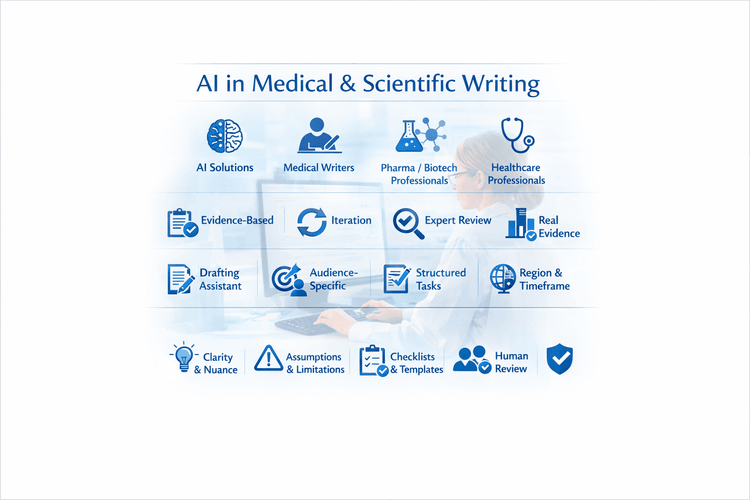
10 Tips For Using MACg and Other AI Solutions For Medical and Scientific Writing
This article shares 10 practical tips for medical writers, pharma/biotech professionals, HCPs, and researchers on how to use MACg and other AI solutions effectively and responsibly. It emphasizes that MACg's AI agent training knowledge is not a citable evidence base and must be anchored in real, verifiable sources such as publications, CSRs, labels, guidelines, and internal documents. Readers are encouraged to treat all AI outputs as Version 0.1, iterating with expert review rather than accepting the first draft. The article frames MACg as a drafting and thinking assistant, not an autonomous author, and stresses the importance of clear prompts about audience, purpose, region, timeframe, and scope. It recommends breaking complex projects into smaller tasks, using MACg to improve structure and clarity, and explicitly asking for limitations and caveats. Finally, it advocates creating institutional checklists and making expert human review and sign‑off mandatory for any impactful content.
Mar 1, 2026
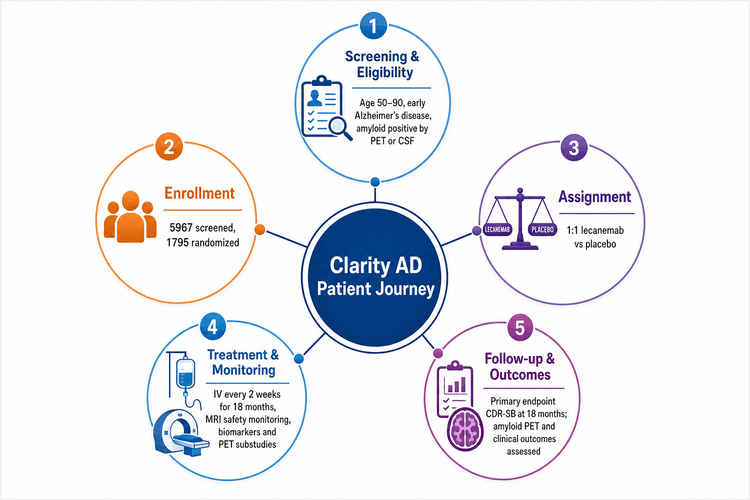
How to Create and Use Prompt Templates to Create PowerPoint Style Medical or Scientific AI Slides and Graphics
This article explains how prompt templates can help create clearer, more polished medical and scientific AI slide graphics. Instead of relying on vague requests, templates provide a reusable structure that makes AI-generated visuals feel more like professional PowerPoint slides and less like generic artwork. The article outlines the key parts of an effective template, including the topic, slide type, visual style, color palette, and layout instructions. It also shows how different formats, such as study design, patient journey, and key takeaways slides, can be matched to different communication goals. Readers will learn why strong prompts should be specific about layout, minimal in text, and designed with presentation use in mind. The included prompt examples are intended as practical starting points that can be customized for different studies, disease areas, products, or scientific messages. Overall, the article offers a simple framework for building more consistent, slide-ready visuals for medical and scientific presentations.
Jul 9, 2026