MACg Overview and Home Screen
This MACg overview covers the key features on the MACg home Screen and Ask MACg screen. It includes the Dashboard, Work Library, Reference Collections, and Ask MACg. It gives examples of some of the tasks you can use MACg for, and it provides helpful tips and prompt suggestions.

Overview of MACg (Medical Affairs Content Generator)
MACg is an AI medical writing and research support platform designed to help users find medical and scientific information and create, refine, and organize scientific and medical content. It can assist with medical writing, summarization, structured drafting, chart creation, flowchart generation, image and infographic creation, and creating slide presentations you can edit on the platform.
MACg is an evidence-first platform. This means that users should identify credible sources of information that MACg should use for creating content or answering questions. For example, uploaded files, a PubMed search, or a web search. MACg's training knowledge should not be used as an accurate source of medical or scientific information. This is the most important tip for using many AI platforms.
MACg is not designed to be an expert in any medical or scientific discipline and should not be used as such. However, it understands scientific and medical content and can use your data sources to develop your content. You are the expert and MACg is a platform that supports your work.
MACg is not a Chatbot; it is a platform that supports the critical steps in scientific content generation and is designed to follow the scientific content generation workflow. Therefore, it works differently from chatbots.
MACg Home Screen
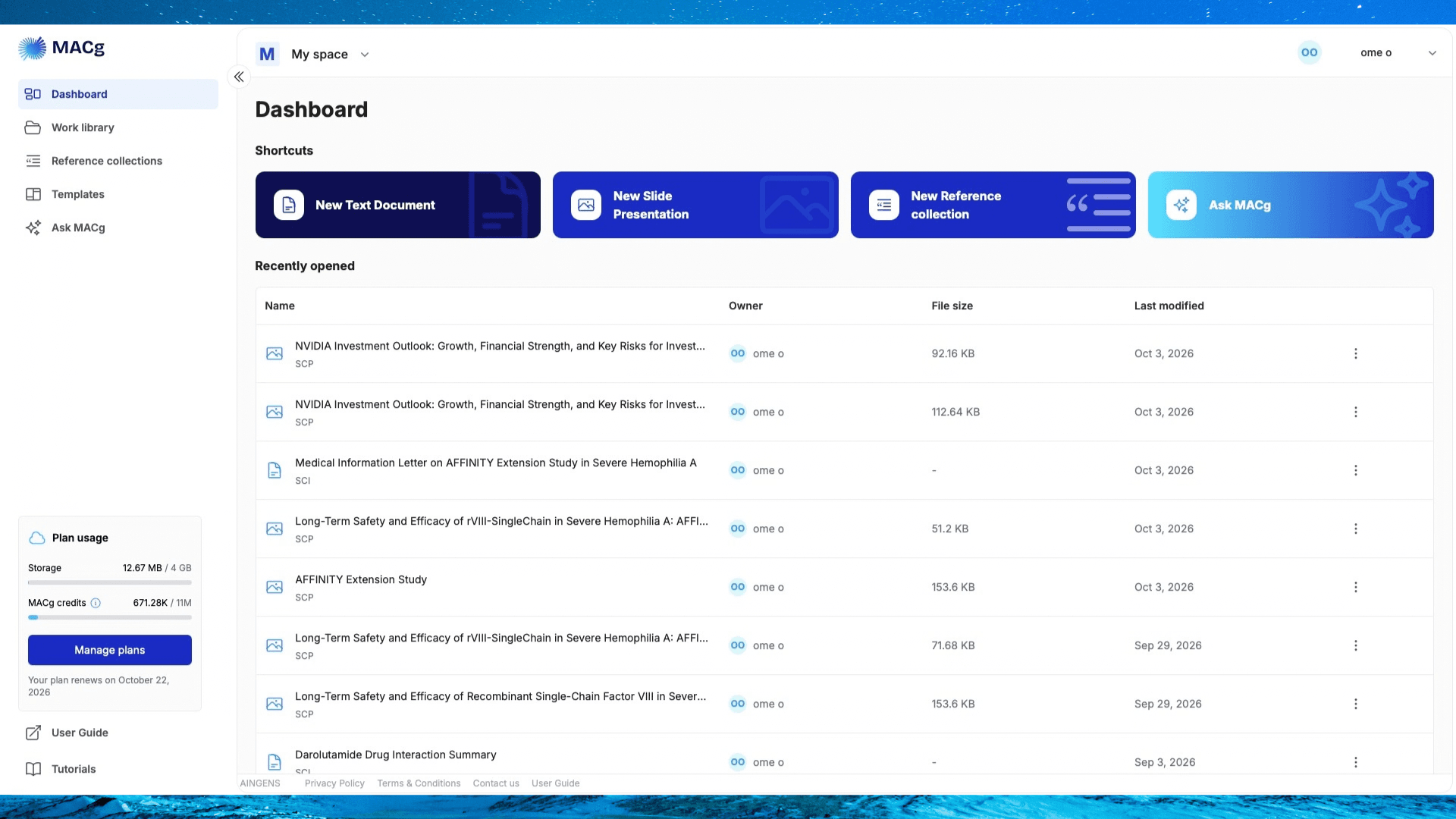
Dashboard
Your dashboard shows your most recent work that you created or opened.
- Click on a file to open it.
- Click on the 3 dots next to the last modified date to open up the options for:
- Open
- Rename
- Export As
- Delete
- Click on the shortcuts to access those workflows:
- New Text document
- New slide presentation
- New Reference collection
- ASK MACg
Work Library
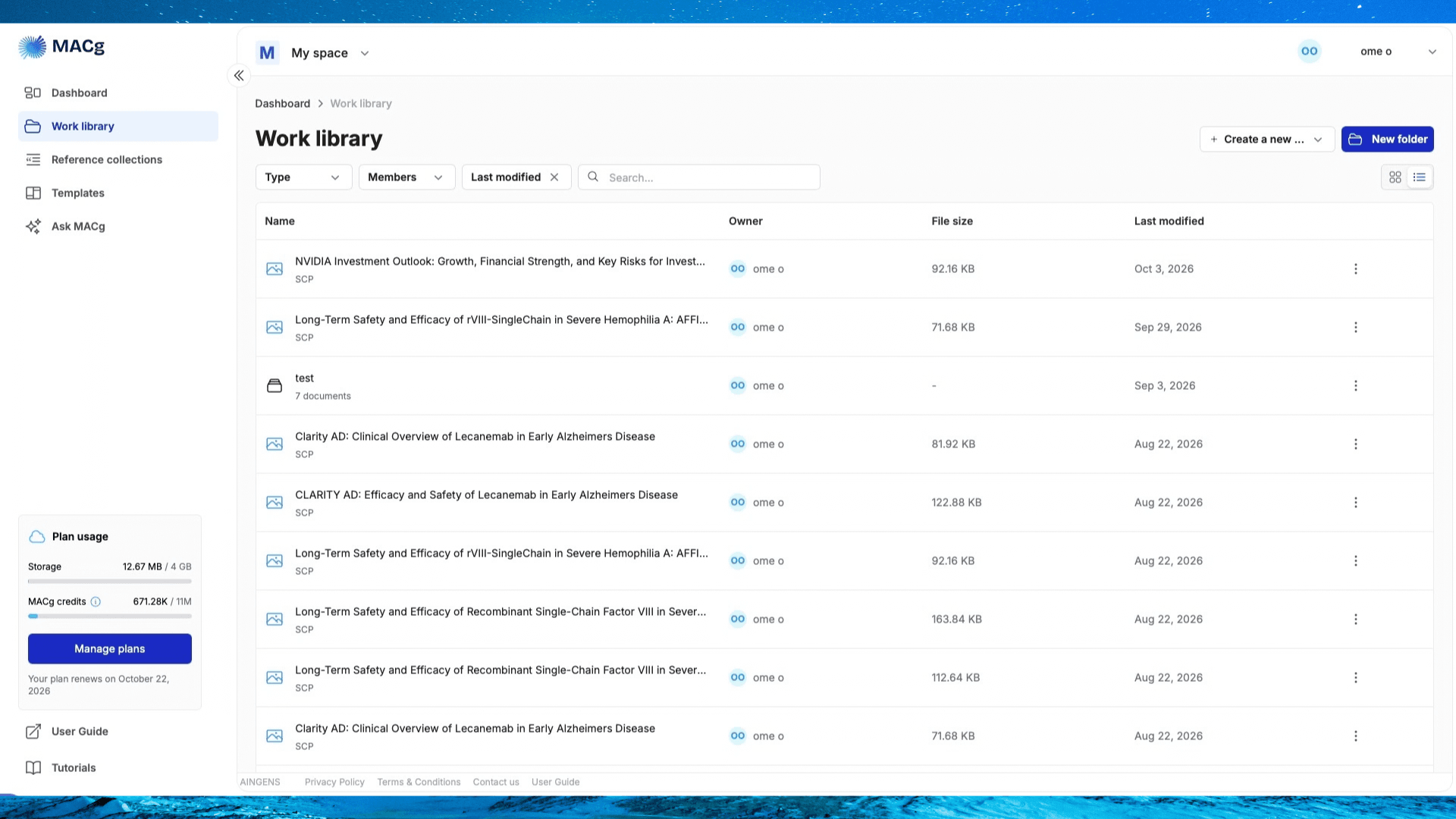
All the content you create in MACg is automatically saved in your work library. You can organize your work into folders and subfolders by selecting “New Folder”.
MACg automatically saves your work in the general work folder or the subfolder that was open when you selected “Create New” Document or Presentation.
- Open any file by double-clicking on it.
- Select “Create New” for Document and presentation creation shortcuts
- Select the 3 dots for actions like: Open file, transfer, export, move, delete, share access
- Sort by type of content (Presentation, text article, Collection or folder); team member (file owner); date last modified
- Search by file name
Reference Collections
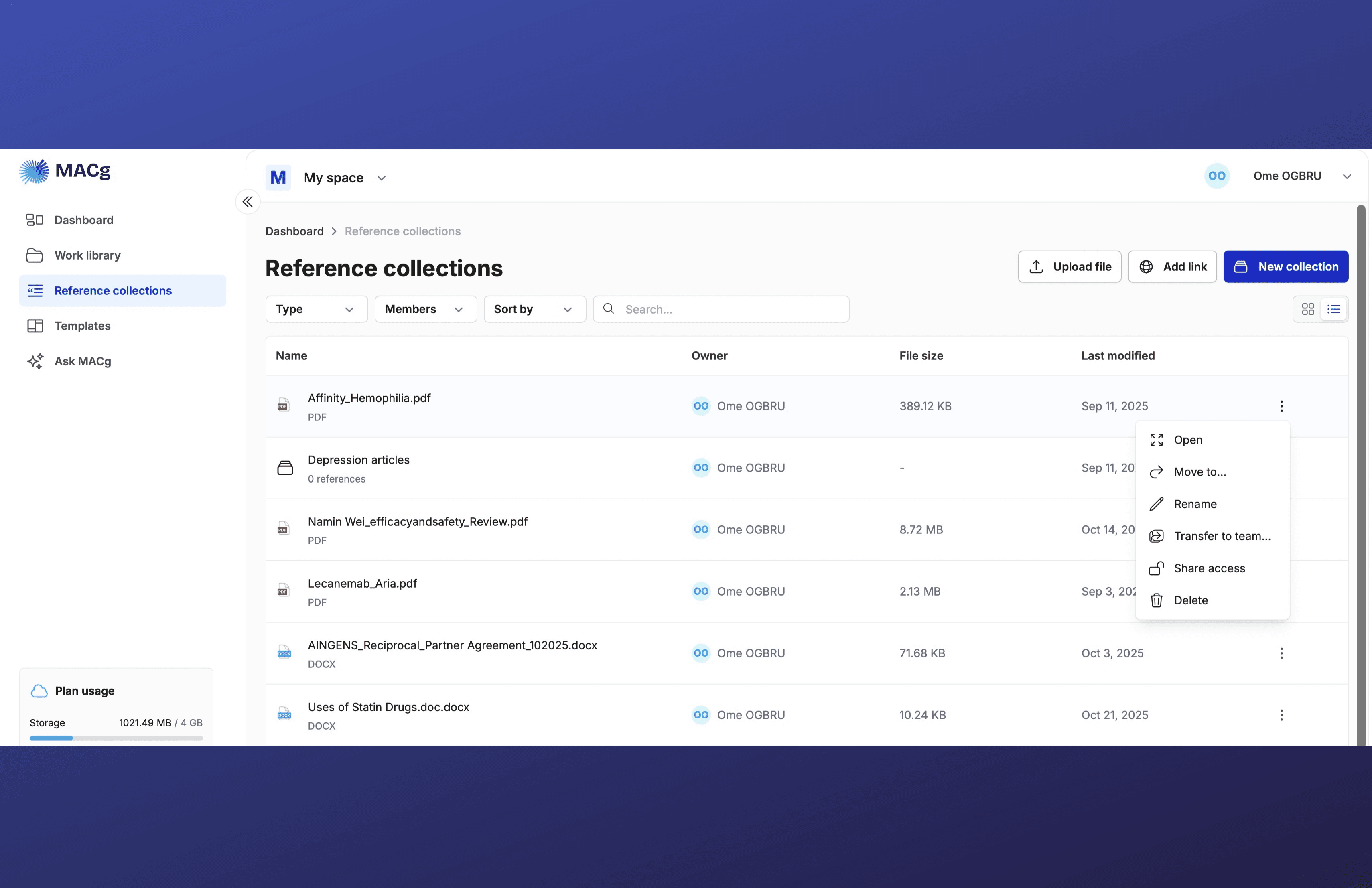
All your uploaded knowledge sources, including attachments during chat, are saved here. This includes:
- Articles
- Web pages
- PubMed link
- Spreadsheets
- Slide decks
- Open any file by double-clicking on it.
- Select the 3 dots for actions like: Open file, transfer, export, move, delete, share access.
- Sort by type of content; team member (file owner); date last modified
- Search by file name
- You can upload content by selecting “Upload Files”.
- Add a web page link by selecting “Add Link”.
- Create folders and subfolders to organize work by selecting “New Collection”.
*Note: When you upload content, MACg processes the text and also extracts citations from the document for accurate insertion into your generated content.
Ask MACg
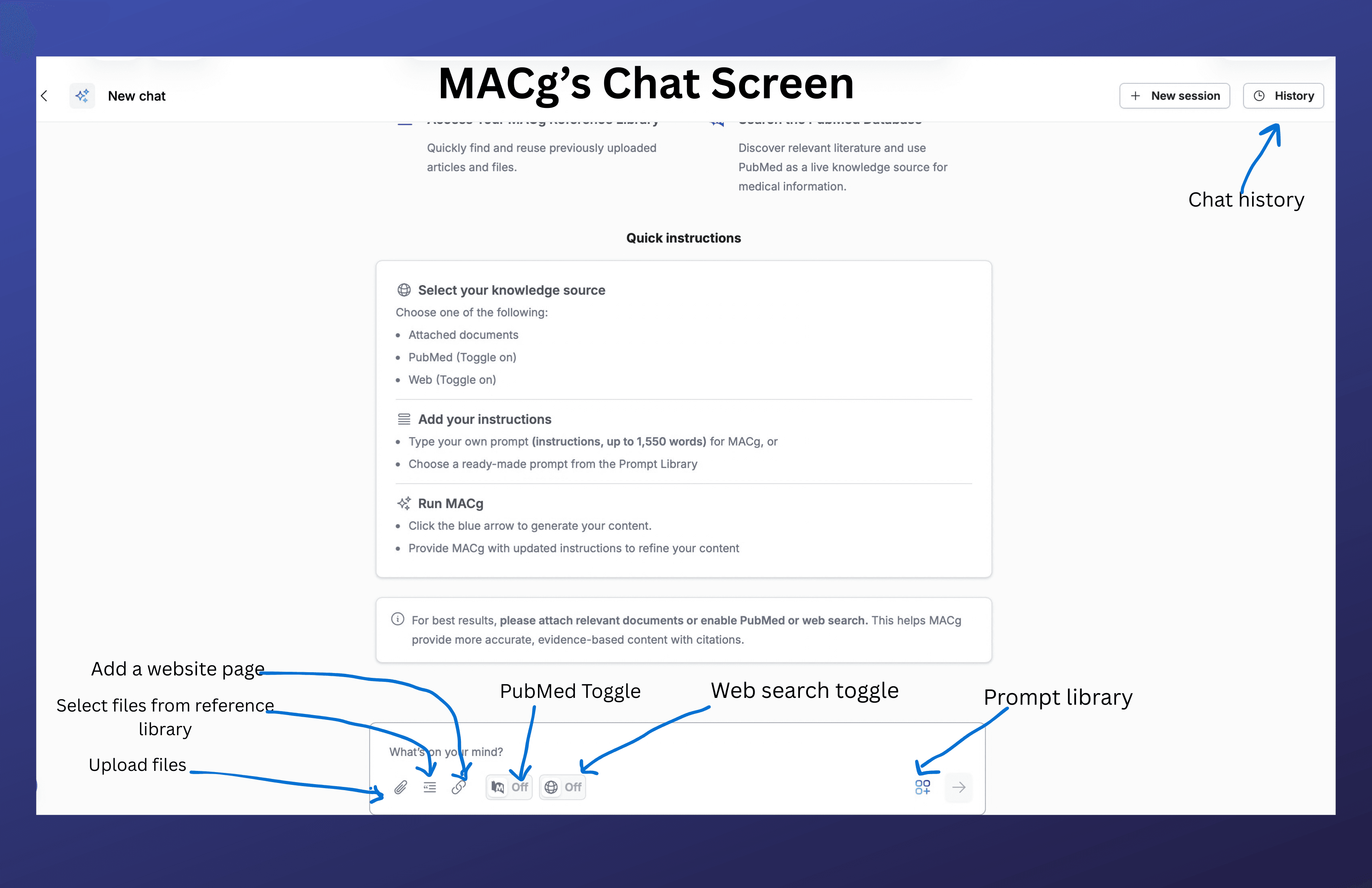
Select Ask MACg to open the MACg chat interface and use MACg’s AI agents and tools to accomplish various tasks. Wherever you see the blue AI icon, you can activate Ask MACg by selecting the icon.
Access the following features in the MACg chat interface.
- Upload files
- Attach files from your reference library
- Attach your curated websites
- Search PubMed
- Search the web
- Access the MACg scientific prompt library
- Chat history
- Create New Document or Presentation
What MACg Can Do
MACg can help with:
- Medical and scientific writing
- Summarizing documents or pasted text
- Rewriting and editing content
- Creating structured outputs such as abstracts, FAQs, case studies, and reports
- Generating charts
- Generating flowcharts
- Creating images, diagrams, and infographics
- Creating editable slide presentations
- Searching Pubmed
- Searching the web
- Managing citations
- Organizing your files and content outputs
Getting Started with ASK MACg
You can interact with MACg by typing a direct request in natural language into the prompt window. The clearer your prompt, the better the result.
Basic prompt pattern
Use prompts like:
“Summarize this text in 5 bullet points.”
“Rewrite this abstract in a more professional tone.”
“Create a bar chart showing diabetes prevalence by age group.”
“Generate an infographic about hypertension risk factors.”
For more complex tasks, include more details and work in multiple steps..
Major Features of MACg
1. Medical Writing Support
MACg can draft and improve many kinds of medical and scientific content, including:
Abstracts
Manuscripts
Posters
Literature summaries
Case studies
FAQs
Study overviews
Professional reports
Educational content
Thesis
Blogs
Example prompts:
“Draft an abstract on the burden of chronic kidney disease.”
“Rewrite this discussion section for clarity and conciseness.”
“Create a patient-friendly FAQ about migraine treatment.”
“Turn these notes into a professional medical summary.”
Best practices
- Provide the target audience if relevant: clinicians, researchers, patients, executives, or students.
- State the desired tone: formal, concise, plain-language, scientific, or persuasive.
- If you already have text, paste it directly and ask for transformation.
2. Summarization and Content Transformation
MACg is strong at transforming user-provided text. It can:
- Summarize long passages
- Simplify technical content
- Expand brief notes into full prose
- Reformat text into bullets, tables, or sections
- Paraphrase or polish language
- Translate to over 100 languages
Example prompts:
“Summarize this article in plain English.”
“Convert this paragraph into slide bullets.”
“Shorten this text to 150 words.”
“Rewrite this for a patient audience.”
“Turn this into a structured executive summary.”
3. Chart Generation
MACg has an integrated chart tool separate from the image generator. MACg can generate several types of charts, including:
- Bar charts
- Line charts
- Pie charts
- Doughnut charts
- Bubble charts
- Radar charts
- Polar area charts
How to request a chart
Provide your source data and ask MACg for the type of chart you want.
Example prompts:
“Create a bar chart of common causes of hospital readmission.”
“Generate a pie chart showing major contributors to cardiovascular risk.”
“Make a line chart of hypothetical monthly clinic visits.”
“Create a radar chart comparing treatment attributes.”
Tips
If you have exact values, include them.
If you do not, MACg can still generate an illustrative chart.
Be explicit about the chart type if you have a preference.
Note: If the data you provided does not support the type of chart you requested or can be generated by the chart tool, an error may occur. You can try again or ask MACg to use the image generator to create a suitable chart for the data you provided.
4. Flowchart Generation
MACg can create flowcharts using Mermaid syntax. This is useful for:
- Clinical workflows
- Study processes
- Decision trees
- Operational steps
- Patient journeys
Example prompts:
“Create a flowchart for patient triage in the emergency department.”
“Generate a flow diagram showing the manuscript review process.”
“Show how prior authorization works in a flowchart.”
“Create a flowchart for diagnosing iron deficiency anemia.”
Best practices
Mention the process you want visualized.
If relevant, specify whether the audience is clinical, operational, or educational.
Note: You can also ask MACg to use the image generator to generate the flowchart.
5. Image, Diagram, and Infographic Generation
MACg can use the image generator to generate:
- Infographics
- Illustrations
- Visual diagrams
- Mechanism of action
- Disease process
- Maps
- Scientific-style posters
- General images
- Infographic tables
Example prompts
“Generate an infographic on COPD risk factors.”
“Create a medical illustration of the human kidney.”
“Make a visual summary of hypertension management.”
“Generate a diagram of insulin signaling.”
Image prompt behavior
MACg automatically converts your request into a more complete visual prompt, usually adding design guidance such as:
- clean layout
- high resolution
- professional style
- full frame without cropping
- readable text
- centered composition with margins
Best practices
Say what kind of visual you want.
Mention desired sections, labels, colors, icons, or layout.
If text must appear in the image, keep it short and structured.
6. Editing Images Generated in MACg
If an image was created in the conversation, MACg can edit it.
Example prompts:
“Edit the last image to add a timeline.”
“Change the previous infographic to a blue and white theme.”
“Add icons for symptoms to the last image.”
“Update the previous visual to include a patient flow diagram.”
Important note
For image editing to work well, the image should be in the conversation history. MACg does not edit images created in other platforms.
7. Presentation Support
MACg can help create editable slide presentations. See the slide presentation section for more details.
8. PubMed Search
See the PubMed search section of the guide for details on how to search PubMed with MACg.
9. Structured Writing Formats
MACg can produce content in many structured formats. Examples include:
- Abstract
- Executive summary
- FAQ
- Case study
- Bullet summary
- Table
- Slide outline
- Step-by-step guide
Example prompts:
“Write this as an FAQ.”
“Turn this content into a case study.”
“Create an executive summary with key takeaways.”
“Reformat this into a comparison table.”
How to Write Effective Prompts
The best results usually come from prompts that include:
- Goal: what you want MACg to produce
- Format: summary, chart, FAQ, table, guide, presentation, etc.
- Audience: clinician, patient, student, executive, researcher
- Tone: formal, scientific, concise, friendly, plain language
- Constraints: word count, number of bullets, sections to include
Prompt formula
A simple template is:
[Action] + [topic/content] + [format] + [audience/tone] + [constraints]
Examples prompts:
“Summarize this study in 5 bullets for a sales training audience.”
“Rewrite this introduction in a more scientific tone.”
“Create a pie chart about common asthma triggers.”
“Draft a user-friendly FAQ on statin side effects.”
“Build a 10-slide outline on rare disease diagnosis.”
Working With Your Own Text
If you already have content, you can paste it directly and ask MACg to:
- shorten it
- improve it
- restructure it
- simplify it
- convert it into another format
Example prompts:
“Improve the clarity of this paragraph.”
“Make this more concise.”
“Turn this into a patient information sheet.”
“Convert this into speaker notes.”
This is one of the most reliable ways to use MACg because the task is based on content you provided directly. The chat window accepts about 10,000 characters. Content exceeding 10,000 characters can be pasted in sections; tell MACg it will be added in sections, then ask MACg to compile the entire output.
100 AI Slide Presentation Prompts for Busy Medical and Scientific Professionals
This article provides 100 ready‑to‑use AI prompts to help medical and scientific professionals create high‑quality slide presentations with MACg. The prompts are organized into practical categories, including clinical education, drug and mechanism‑of‑action decks, PubMed‑driven evidence reviews, specialty teaching, medical affairs and HEOR, training and curriculum, data‑visualization, and conference or grant presentations. Each prompt uses clear “Instruction:” wording and customizable placeholders (e.g., [condition], [audience], [timeframe]) so users can quickly adapt them to their specific topic and setting. By removing blank‑slide paralysis, the collection speeds up evidence‑based slide creation while supporting consistent, structured, and compliant communication.

Feb 4, 2026
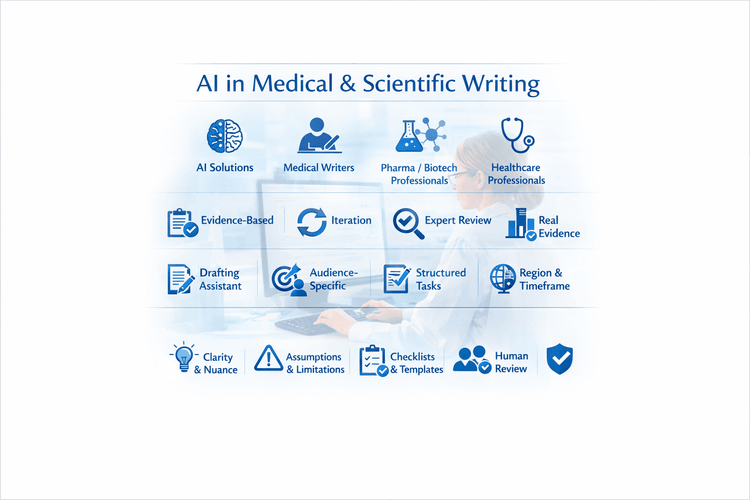
10 Tips For Using MACg and Other AI Solutions For Medical and Scientific Writing
This article shares 10 practical tips for medical writers, pharma/biotech professionals, HCPs, and researchers on how to use MACg and other AI solutions effectively and responsibly. It emphasizes that MACg's AI agent training knowledge is not a citable evidence base and must be anchored in real, verifiable sources such as publications, CSRs, labels, guidelines, and internal documents. Readers are encouraged to treat all AI outputs as Version 0.1, iterating with expert review rather than accepting the first draft. The article frames MACg as a drafting and thinking assistant, not an autonomous author, and stresses the importance of clear prompts about audience, purpose, region, timeframe, and scope. It recommends breaking complex projects into smaller tasks, using MACg to improve structure and clarity, and explicitly asking for limitations and caveats. Finally, it advocates creating institutional checklists and making expert human review and sign‑off mandatory for any impactful content.
Mar 1, 2026
How to Efficiently Write a Scientific Review Article with MACg: Your AI-Powered Assistant for Academic Writing, Automated Research, and Citation Management
Discover how MACg, the AI-powered writing assistant, transforms the process of crafting a scientific review article. This step-by-step guide reveals how MACg automates key tasks-from defining your research scope and conducting literature searches to drafting content and creating visuals-all in under 30 seconds per task. With example prompts and insights into time savings, learn how MACg reduces the writing process from weeks to hours, allowing you to focus on analysis and innovation. Dive into the future of efficient academic writing and see how MACg can revolutionize your workflow.

Jul 26, 2025